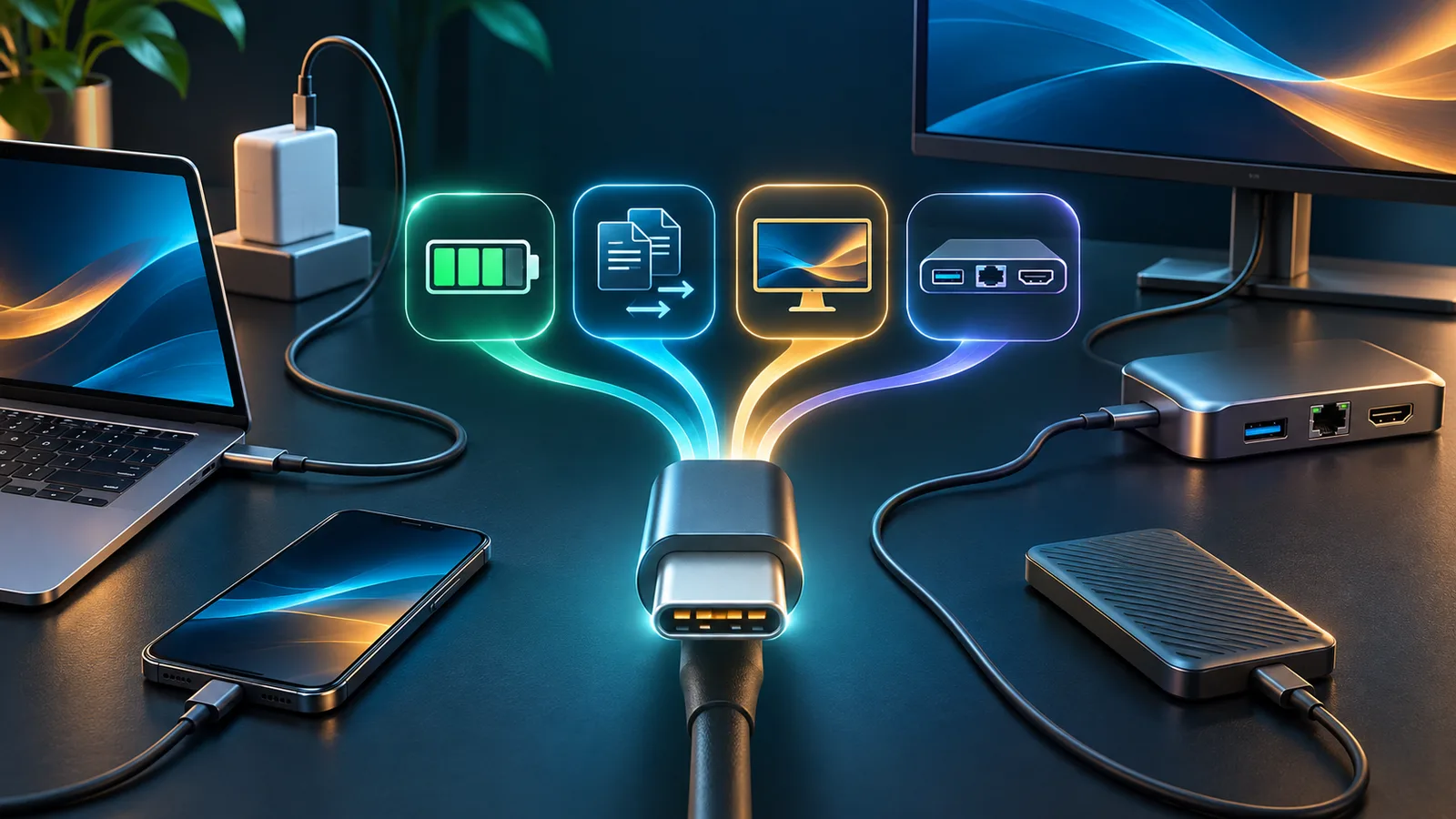
USB-C looks simple: the compact connector is reversible, fits phones and laptops, and can carry power, data, and video. The confusion starts when two identical-looking ports do completely different things. One charges a laptop and drives two monitors. Another transfers data only at USB 2.0 speed. A third supports fast storage but no video. The connector shape alone does not reveal the full capability.
This USB-C cable and port guide explains how to match a host, cable, charger, dock, display, and peripheral. The key principle is straightforward: a connection operates at the best capability shared by every component in the path. The weakest or least capable part can limit the result.
USB-C Describes the Connector, Not the Performance
USB Type-C defines a small, reversible connector system. It does not mean that every USB-C port supports the same data speed, charging power, video output, or optional protocol. Manufacturers can implement the connector with different capabilities based on the device’s design.
To predict what will work, check four separate layers:
- Host port: What the laptop, phone, tablet, or desktop can send and receive.
- Connected device: What the monitor, SSD, dock, charger, or accessory accepts.
- Cable: Its supported data rate, power rating, length, and optional features.
- Software and configuration: Drivers, firmware, operating-system support, security settings, and display configuration.
A USB-C cable can be perfectly functional for charging yet fail to carry high-speed data or display video because those functions require conductors, electronics, and certifications not present in a basic charging cable.
USB-C Data Speeds Explained
The USB Implementers Forum recommends consumer-facing performance labels based on the supported signaling rate. Current USB specifications cover several major levels:
| Consumer label | Nominal signaling rate | Typical use |
|---|---|---|
| Hi-Speed USB | 480 Mbps | Basic accessories, charging cables, keyboards, mice, and legacy devices |
| USB 5Gbps | 5 Gbps | General external storage, hubs, and peripherals |
| USB 10Gbps | 10 Gbps | Faster SSDs, docks, and higher-bandwidth peripherals |
| USB 20Gbps | 20 Gbps | High-performance storage and capable docks |
| USB 40Gbps | 40 Gbps | USB4 docks, fast storage, and combined data/display workloads |
| USB 80Gbps | 80 Gbps | Newest USB4 high-bandwidth devices and displays |
These are signaling rates, not guaranteed file-copy speeds. Protocol overhead, storage performance, controller design, thermal limits, file size, encryption, and other traffic reduce real throughput. A fast cable cannot make a slow port faster, and a fast port cannot overcome a USB 2.0 cable.
USB4 can dynamically share a high-speed link among USB data, displays, and other tunneled protocols. That flexibility is valuable for one-cable docks, but it also means the available bandwidth may be divided among several functions.
Charging: USB-C Is Not a Wattage
A USB-C charger does not force its maximum wattage into a device. With USB Power Delivery, the source and sink communicate and agree on a supported power level. A 100-watt or 140-watt charger can safely charge a lower-power phone when the equipment follows the standard, but the phone draws only the negotiated amount it supports.
The final charging rate depends on all of the following:
- The charger’s supported USB Power Delivery profiles
- The device’s maximum input and charging protocol
- The cable’s current and power rating
- Whether the charger is splitting capacity among multiple ports
- Battery temperature, charge level, and device power consumption
USB Power Delivery Extended Power Range supports up to 240 watts under the current specification. That maximum requires compatible equipment and a cable designed for the higher range. It does not mean every USB-C laptop, charger, or cable supports 240 watts.
If a laptop refuses to charge or charges too slowly, work through our dedicated USB-C laptop charging troubleshooting guide. It covers port roles, charger output, cable ratings, firmware, and battery conditions in more detail.
Understanding 60W and 240W Cable Labels
USB-IF’s certification program requires compliant USB-C-to-USB-C cables to carry a 60W or 240W power marking. Certified cables faster than basic USB 2.0 also carry an appropriate data-rate marking. These labels make shopping easier because power and data capability are separate.
A 240W label indicates that the cable is designed for the higher power range; it does not say that the cable carries high-speed data. A 240W cable may still be intended mainly for charging. Likewise, a fast data cable may support only the lower power tier. Look for both ratings when you need both functions.
Older cables and packaging may use earlier 100W terminology, so do not assume an older quality cable is fake solely because it lacks newer markings. For a new purchase, clear certified speed and power labels reduce guesswork.
What Is an E-Marker?
An electronically marked cable contains a small chip that reports information about the cable to connected equipment. Depending on the cable, that information can include current capacity, supported signaling, cable type, and other properties used during negotiation.
The E-marker does not accelerate a cable beyond its physical design. It helps compatible devices identify what the cable is built to handle. Avoid relying on appearance, thickness, or connector color as proof of capability.
USB-C Video: Why Some Ports Work and Others Do Not
A USB-C port can carry video when the host supports a suitable video path. A common implementation is DisplayPort Alternate Mode, which uses high-speed lanes in the USB-C connector to transport DisplayPort audio and video. USB4 and Thunderbolt systems can also carry display traffic through their supported architectures.
The presence of a USB-C connector does not guarantee video output. Before buying a monitor, dock, or screen extender, verify that the computer or phone explicitly supports DisplayPort over USB-C, a compatible USB4 display path, or Thunderbolt video. The cable and adapter must also support the required mode and bandwidth.
This distinction is especially important for accessories such as the Redalf S6 laptop screen extender and wired display glasses. A USB-C power port is not automatically a video port.
Display Resolution Depends on More Than the Cable
When a display connection fails to reach the expected resolution or refresh rate, check the complete path:
- Host graphics hardware and supported display outputs
- USB-C port or Thunderbolt capabilities
- Dock or adapter limits
- Cable bandwidth and length
- Monitor input specification
- Color depth, HDR, chroma format, and display compression
- Operating-system settings and graphics drivers
A dock advertising two or three monitor outputs may support fewer displays or lower resolutions on one host than another. Mac, Windows, ChromeOS, Android, and other platforms do not all implement external-display configurations the same way.
USB-C, USB4, and Thunderbolt Are Related but Different
USB-C is the connector. USB4 is a USB architecture that uses USB-C and can share bandwidth among data and display protocols. Thunderbolt is a separate Intel-led technology and certification program that also uses the USB-C connector on modern versions.
A Thunderbolt port can support a broad set of high-performance docks and storage devices, but not every USB-C port is Thunderbolt. USB4 and Thunderbolt capabilities also vary by generation and implementation. Look for the exact device specification and certified logo rather than treating the terms as interchangeable.
Passive vs. Active USB-C Cables
Passive cables rely on the cable’s conductors and design to carry the signal. They are simple and often less expensive, but high data rates become harder to maintain over longer distances. Active cables include electronics that condition or retime signals, allowing some high-performance links to reach farther.
Active does not automatically mean universally compatible. An active cable may be designed for a specific protocol, direction, or use case. Read the specifications carefully when connecting a dock, high-resolution monitor, external GPU, or fast storage device.
How to Choose the Right USB-C Cable
For phone charging
Match the cable and charger to the phone’s supported charging standard and wattage. A short, certified 60W cable is sufficient for many phones and tablets. Higher wattage does not make a device exceed its designed charging rate.
For laptop charging
Check the laptop’s recommended adapter wattage and whether it accepts USB Power Delivery on that port. Choose a clearly marked cable with adequate power capacity. If the laptop normally uses more than 60 watts, select a compatible higher-power cable and charger.
For an external SSD
Match the cable’s data label to the drive and host. A charge-only or USB 2.0 cable can make a fast SSD appear extremely slow. Shorter passive cables are often practical for desk use, provided they carry the required certification and rate.
For a monitor or dock
Confirm video support, data rate, charging power, and the monitor’s resolution and refresh-rate requirements. Use the cable included by the manufacturer when it is properly specified. For a replacement, match every required capability rather than shopping by wattage alone.
For travel
One well-labeled, full-featured cable can replace several specialized cables, but carrying a small dedicated charging cable can also be useful. Label cables with their data and power ratings so that identical-looking spares do not become a troubleshooting exercise. Our digital-nomad accessories guide covers hubs, chargers, storage, and other travel considerations.
Common USB-C Problems and What They Usually Mean
| Symptom | Likely causes |
|---|---|
| Device charges slowly | Low-power charger, basic cable, shared charger capacity, battery temperature, or unsupported fast-charge protocol |
| No display signal | Host lacks video output, wrong cable, incompatible adapter, dock limitation, or display setting |
| SSD transfers slowly | USB 2.0 cable, slower host port, hub bottleneck, thermal throttling, or storage limitation |
| Dock disconnects under load | Insufficient power, marginal cable, firmware, heat, host compatibility, or too much shared bandwidth |
| Cable works one way but not another | Damaged cable or connector, noncompliant product, active-cable direction, debris, or a port-specific device limitation |
When troubleshooting, simplify the chain. Connect the device directly, use a known-good cable, disconnect unnecessary accessories, update firmware and drivers, and test another compatible port. Change one component at a time so the result identifies the bottleneck.
Safety and Quality Checklist
- Prefer certified products with clear power and data labels.
- Replace cables with damaged insulation, loose connectors, heat discoloration, or intermittent operation.
- Avoid unbranded adapters making vague claims such as “full speed” without a rate.
- Do not cover high-power chargers or docks where heat cannot escape.
- Keep USB-C ports free of lint and conductive debris; power down equipment before careful cleaning.
- Use a charger from a reputable manufacturer with appropriate electrical certifications for your region.
- Do not assume that a physically fitting adapter is standards-compliant.
Frequently Asked Questions
Do all USB-C cables transfer data?
Many do, but their speeds can range from basic USB 2.0 to the newest USB4 rates. Some cables are marketed primarily for charging. Check a specific data-rate label rather than assuming performance from the connector.
Can a 240W cable damage my phone?
A standards-compliant higher-capacity cable does not force 240 watts into a phone. The phone, charger, and cable negotiate a supported level. Product quality and charger compliance still matter.
Why does my USB-C cable charge but not display video?
The cable may lack the required high-speed lanes, or the host port may not support video output. Confirm DisplayPort Alt Mode, USB4, or Thunderbolt video support on the host and use a compatible full-featured cable or certified adapter.
Is a thicker USB-C cable always better?
No. Thickness can reflect conductor size, shielding, jacket material, or simply design choices. It does not reliably communicate data speed, power capacity, certification, or video support.
The Bottom Line
USB-C is a versatile connector, not a complete performance specification. For a dependable connection, match the host port, device, cable, charger or dock, and software. Shop by explicit power, data, and video capabilities. A clearly labeled certified cable costs less than repeatedly replacing mystery cables that fit the port but cannot do the job.
Leave a Reply