
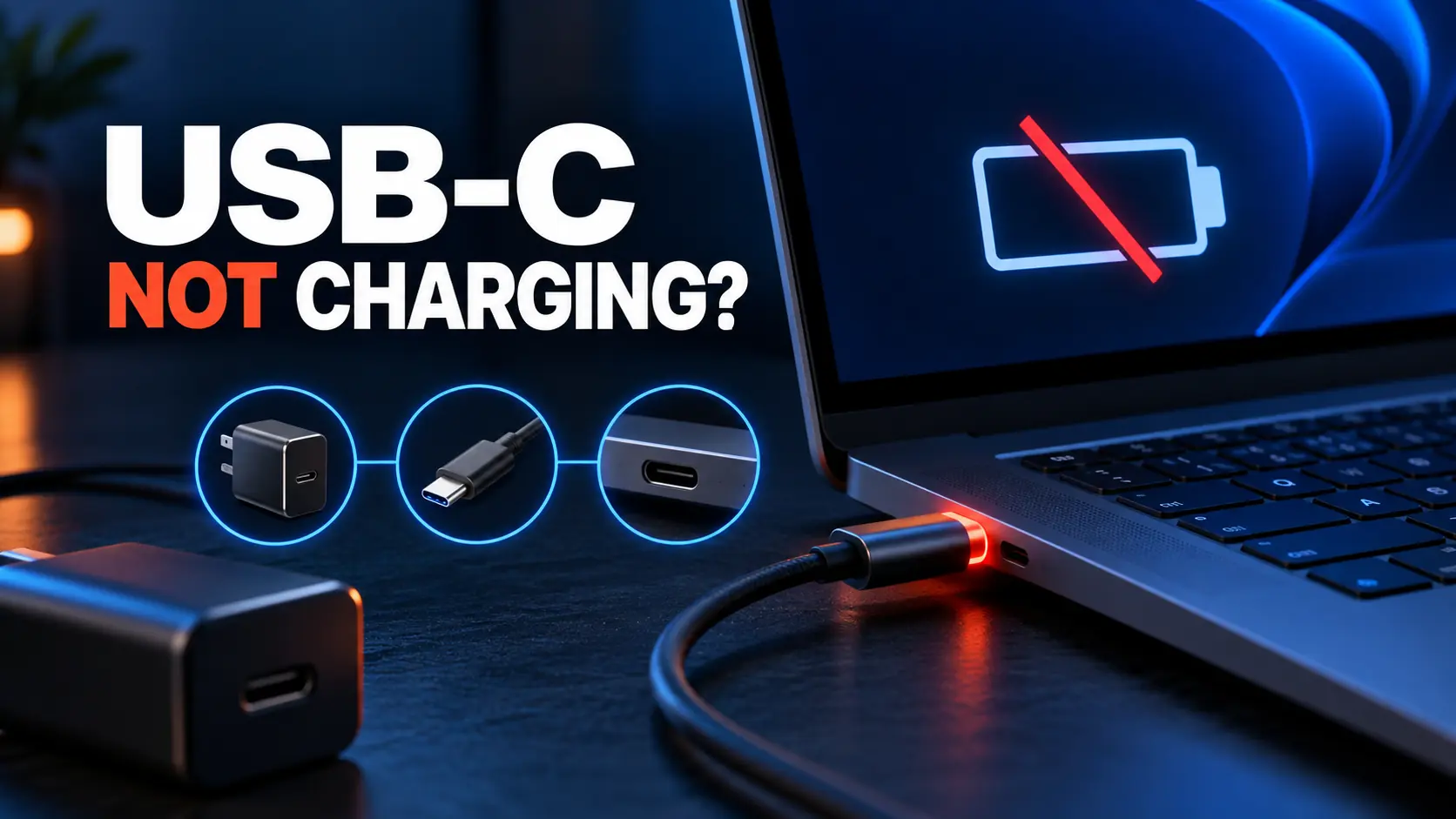
If your laptop will not charge through USB-C, the problem is usually one of four things: the port does not accept charging, the charger cannot supply the required power, the cable is not rated for that power, or a dock is reducing the power that reaches the laptop.
The confusing part is that USB-C describes the connector’s shape—not every feature behind it. Two ports can look identical while one supports laptop charging, video, and high-speed data and the other handles only basic data. The same is true of USB-C chargers and cables.
This guide starts with the fastest checks and then moves into wattage, Power Delivery, cables, docks, software, and possible hardware failure. You should be able to narrow down the cause without buying several replacement accessories at random.
Quick USB-C charging checklist
- Confirm that your laptop model supports charging through USB-C.
- Use the USB-C port marked for charging or Power Delivery.
- Connect the charger directly to the laptop, bypassing any hub, dock, or monitor.
- Check that the charger meets the laptop manufacturer’s recommended wattage.
- Use a USB-C-to-USB-C cable rated for the required wattage.
- Disconnect high-power accessories and test while the laptop is idle.
- Try a known-good charger and cable that work with another compatible laptop.
- Inspect the port for debris, looseness, heat, or visible damage.
If the original laptop charger works when connected directly but your replacement setup does not, the battery is probably not the first suspect. Focus on the replacement charger, cable, dock, or port combination.
Why a USB-C port may not charge your laptop
A USB-C receptacle can support different combinations of data, video, and power. Laptop manufacturers decide which capabilities are wired to each port. A port may support data transfers but not power input. Another may accept power but lack video output. A Thunderbolt-compatible port may support several functions, but even the Thunderbolt symbol should not replace checking the specifications for your exact model.
Look beside the port for a charging, battery, plug, or lightning-style symbol, but treat the manual or manufacturer specification page as the final authority. Symbols are not perfectly consistent across brands. If a laptop originally came with a barrel-style adapter, do not assume its USB-C port can replace that adapter.
If the laptop has two or more USB-C ports, try each one. Some models allow charging through every USB-C or Thunderbolt port, while others designate only one for power input.
USB-C and USB Power Delivery are not the same thing
USB Power Delivery, usually shortened to USB PD, is the system that lets a compatible charger and device negotiate voltage and current. The laptop asks for a supported power level, and the charger offers one of its available profiles. If they cannot agree on a suitable profile, the laptop may charge slowly, refuse to charge, or display an unsupported-charger warning.
The current USB PD specification can support power levels up to 240 watts with compatible equipment, according to the USB Implementers Forum. That maximum does not mean every USB-C charger, cable, or laptop supports 240 watts. The entire connection is limited by its least-capable part.
| Part of the connection | What to verify | Common failure |
|---|---|---|
| Laptop | USB-C charging support and recommended input wattage | The port is data-only or the laptop requires more power |
| Charger | USB PD support, total wattage, and supported output profiles | A phone charger supplies too little power |
| Cable | USB-C-to-USB-C construction and sufficient wattage rating | The cable limits power even when the charger is capable |
| Dock or monitor | Power delivered to the host laptop, not merely the dock’s input rating | The dock reserves power for itself and connected devices |
1. Check the charger’s wattage
Start with the wattage printed on the laptop’s original adapter or listed in the manufacturer’s specifications. A thin notebook may be designed around a 45- or 65-watt adapter, while a mobile workstation or gaming laptop may require substantially more. Use the requirement for your exact model rather than a general estimate based on screen size.
A charger’s advertised number is its maximum output, not a promise that every connected device receives that amount. A multiport charger may provide its full rating only through one specific port. Plugging in a phone, tablet, or second laptop can redistribute the available power and reduce what reaches your computer.
A higher-rated compatible USB PD charger does not normally force its full wattage into the laptop. The devices negotiate, and the laptop draws a supported amount. However, a high number on the box does not guarantee compatibility: the charger must offer a voltage and current profile the laptop accepts, and some manufacturers use model-specific charging behavior above standard levels.
Why the battery can fall while the laptop says it is plugged in
A low-wattage charger may provide enough power for light work but not enough for a processor, graphics chip, display, and connected accessories under a heavy load. The laptop then uses charger power plus some battery power. The battery percentage can fall during gaming, rendering, or other demanding work even though the charging icon appears.
To test for this condition, close demanding applications, reduce screen brightness, and leave the laptop idle for several minutes. If the battery begins rising only when the workload falls, the power source is undersized or its output is being shared.
2. Make sure the cable can carry the required power
A USB-C cable that charges earbuds or transfers files may still be a poor laptop-charging cable. Cable power capacity and data speed are separate specifications. A cable can be rated for high charging power but modest data speed, or fast data but insufficient power for a demanding laptop.
USB-IF’s current cable labeling distinguishes certified 60-watt and 240-watt USB-C-to-USB-C cables. Look for the printed wattage on the cable ends or packaging and confirm the product’s certification and specifications. An unmarked cable should not be assumed to carry the charger’s maximum output.
For diagnosis, use the cable included with the laptop or charger when possible. If you substitute a cable, choose one whose stated power rating meets or exceeds the laptop’s requirement. Avoid USB-A-to-USB-C cables for laptop charging; they generally cannot provide the USB PD power a laptop expects.
3. Bypass the dock, hub, or monitor
USB-C docks create a frequent source of charging confusion. A dock advertised with a 100-watt input may not deliver 100 watts to the host laptop. It needs power for its electronics and connected USB devices, so its host output may be lower. Some docks also cap laptop charging well below the rating of the adapter connected to them.
Connect the charger directly to the laptop. If charging resumes, check three separate dock specifications:
- Power input: what the dock can accept from its adapter.
- Host charging output: the maximum power the dock sends to the laptop.
- Power budget: whether attached drives, phones, monitors, or accessories reduce host power.
The same principle applies to a USB-C monitor with laptop charging. Its power-delivery rating must meet the computer’s needs. If you use a second screen, our portable laptop screen extender guide explains common display connection options. Remember that video support and charging support must each be verified; one does not automatically imply the other.
4. Inspect the port and connections
Shut the laptop down and disconnect power before looking closely at the port. Check for lint, dirt, a bent internal tongue, corrosion, or a connector that does not seat fully. Microsoft includes debris and incomplete insertion among the possible causes of USB-C charging problems in its USB-C troubleshooting guidance.
Do not insert a metal object or pour cleaner into the port. If loose debris is visible, use a manufacturer-approved method such as gentle compressed air while keeping the can upright. A port that feels loose, works only when the cable is held at an angle, or repeatedly disconnects needs professional inspection.
5. Reset the power connection
USB PD devices negotiate when connected, and a temporary communication problem can occasionally leave them at the wrong power level. A complete reconnection is more useful than repeatedly flipping the USB-C plug.
- Shut down the laptop.
- Disconnect the charger from the laptop and wall outlet.
- Remove docks and nonessential USB accessories.
- Wait about one minute.
- Reconnect the charger to the wall, then connect it directly to the correct laptop port.
- Start the laptop and check the battery status.
Also test a different wall outlet. If the adapter is unusually hot, unplug it and let it cool in an open area. Do not continue using a charger or cable with cracking, melted plastic, discoloration, exposed conductors, a burning smell, or sparking away from the wall plug blades.
6. Check Windows, macOS, firmware, and battery settings
Software is less often the root cause than a mismatched charger or cable, but status messages can reveal what the laptop detects. Windows may show a slow-charger warning when the connected equipment cannot meet the required power. On a Mac, Battery settings may report “Slow Charger” when delivered wattage is below the recommended level.
Install operating-system, BIOS or UEFI, chipset, Thunderbolt, and USB controller updates from the laptop manufacturer. Restart after updating. Do not download driver-updater utilities from unknown websites; use the computer maker’s support page or the operating system’s built-in update tools.
A laptop may also pause charging near a chosen percentage to preserve battery health. Charge limits, adaptive charging, and optimized charging features can make a healthy system display “plugged in, not charging” around 80 percent. Review the manufacturer’s battery utility before treating that behavior as a fault.
Use this symptom table to narrow down the cause
| Symptom | Most likely area to check first | Best next test |
|---|---|---|
| No charging icon at all | Unsupported port, failed cable, failed charger, or damaged port | Use the original adapter directly in the documented charging port |
| “Slow charger” warning | Low wattage or incompatible power profile | Compare charger output and cable rating with the laptop requirement |
| Charges when asleep but not during use | Insufficient available wattage | Test a correctly rated charger with the laptop idle |
| Works directly but not through a dock | Dock host-output limit or shared power budget | Check the dock’s host charging specification |
| Charges intermittently when the plug moves | Damaged cable or loose port | Stop flexing the connector; test a known-good cable and arrange service if looseness remains |
| Stops around 80 percent | Battery protection setting | Check adaptive charging or charge-limit controls |
| Only one USB-C port works | Different port capabilities or a failed port | Compare the manual’s port diagram with the working port |
How to choose a replacement USB-C charger
Do not shop by connector shape alone. Write down the laptop’s exact model number and the wattage of its original adapter, then compare those requirements with the charger and cable specifications.
- Confirm USB PD support. A USB-C output does not automatically mean full laptop-compatible Power Delivery.
- Meet the recommended wattage. Matching or exceeding the original adapter’s rating is the simplest starting point when the manufacturer permits third-party USB PD charging.
- Read per-port output. On a multiport charger, verify the maximum for the exact port and what happens when other devices are connected.
- Match the cable. The charger’s rating is irrelevant if the cable cannot carry it.
- Check certification and safety markings. Prefer products from traceable manufacturers that clearly publish electrical specifications and warranty information.
- Check airline limits for power banks. A laptop power bank adds battery-capacity and travel-rule considerations beyond ordinary wall chargers.
Travel setups often combine a charger, power bank, dock, and several cables. Our guide to tech accessories for digital nomads covers the broader kit; use the charging checks here before assuming every USB-C accessory in that chain is interchangeable.
When the laptop may need repair
Arrange manufacturer or qualified repair service when a correctly rated, known-good charger and cable fail in every supported charging port, especially if the original adapter also fails. Other warning signs include a loose port, heat concentrated at the connector, visible damage, a swollen case or trackpad, a burning smell, liquid exposure, or charging that cuts in and out when the laptop is stationary.
A swollen battery is a safety issue. Shut the laptop down, unplug it, avoid pressing on the case, and follow the manufacturer’s service and battery-disposal instructions. Do not keep testing chargers against a visibly swollen or damaged computer.
Frequently asked questions
Can every USB-C port charge a laptop?
No. USB-C identifies the connector, but the port may support data only, video and data, power output, power input, or a combination. Check the specifications for the exact laptop model and port.
Can I use a phone charger for my laptop?
Only if the charger supports USB Power Delivery and provides a compatible power profile. Many phone chargers are below a laptop’s required wattage, so the computer may charge extremely slowly, charge only while sleeping, or not charge at all.
Will a 100-watt charger damage a 65-watt laptop?
A standards-compliant USB PD charger and compatible laptop negotiate power; the charger does not simply push its maximum into the computer. Still, confirm that the laptop maker supports USB-C PD charging and use a properly rated cable and reputable charger.
Why does my laptop charge directly but not through a dock?
The dock may deliver less power to the host than its adapter supplies, or it may share its power budget with connected devices. Compare the dock’s host-charging output—not just its input rating—with the laptop’s requirement.
Why does USB-C charging keep connecting and disconnecting?
A damaged cable, loose or dirty port, overheating adapter, overloaded multiport charger, or unstable dock can interrupt power negotiation. Test a known-good charger and cable directly. Stop using any component that is damaged, unusually hot, or works only when held at an angle.
The bottom line
When a laptop will not charge through USB-C, test the power path in order: supported laptop port, sufficient USB PD charger, correctly rated cable, and then any dock or monitor between them. Bypassing accessories and returning to the original charger usually reveals which part is limiting the connection.
If a verified charger-and-cable combination fails in every documented charging port, or the connector shows heat or physical damage, move from accessory troubleshooting to professional service.
Sources: USB-IF: USB Power Delivery; USB-IF: Cables and Connectors; Microsoft: Fix USB-C Problems in Windows; Apple: Charge Your Mac Laptop.
Leave a Reply