
FPS vs refresh rate is one of the most useful distinctions to understand before changing game settings or buying a display. FPS describes how many frames your system produces each second. Refresh rate, measured in hertz, describes how often the display updates. The two interact, but changing one does not automatically change the other.
A 144 Hz monitor can still show a game running poorly at 35 FPS. A computer producing 200 FPS does not make a 60 Hz display refresh 200 times per second. Smooth motion depends on the game, processor, graphics hardware, display, connection and settings working together.
FPS vs refresh rate: the basic difference
The CPU prepares work such as game logic and draw calls; the GPU renders images. The resulting delivery rate is expressed as frames per second. A display then scans out images according to its refresh behavior. Intel’s refresh-rate guide explains why both sufficient rendering performance and a compatible display are needed to benefit from high-refresh gaming.
| Term | What it measures | Why it matters |
|---|---|---|
| FPS | Frames produced each second | How frequently the game supplies new visual information |
| Refresh rate | Display updates each second, in Hz | How often the screen can present updates |
| Frame time | Time spent producing a frame | Uneven delivery can cause visible stutter |
| Response time | Pixel transition speed | Slow transitions can produce blur or ghosting |
| Input latency | Delay from input to visible response | Depends on the whole interaction pipeline |
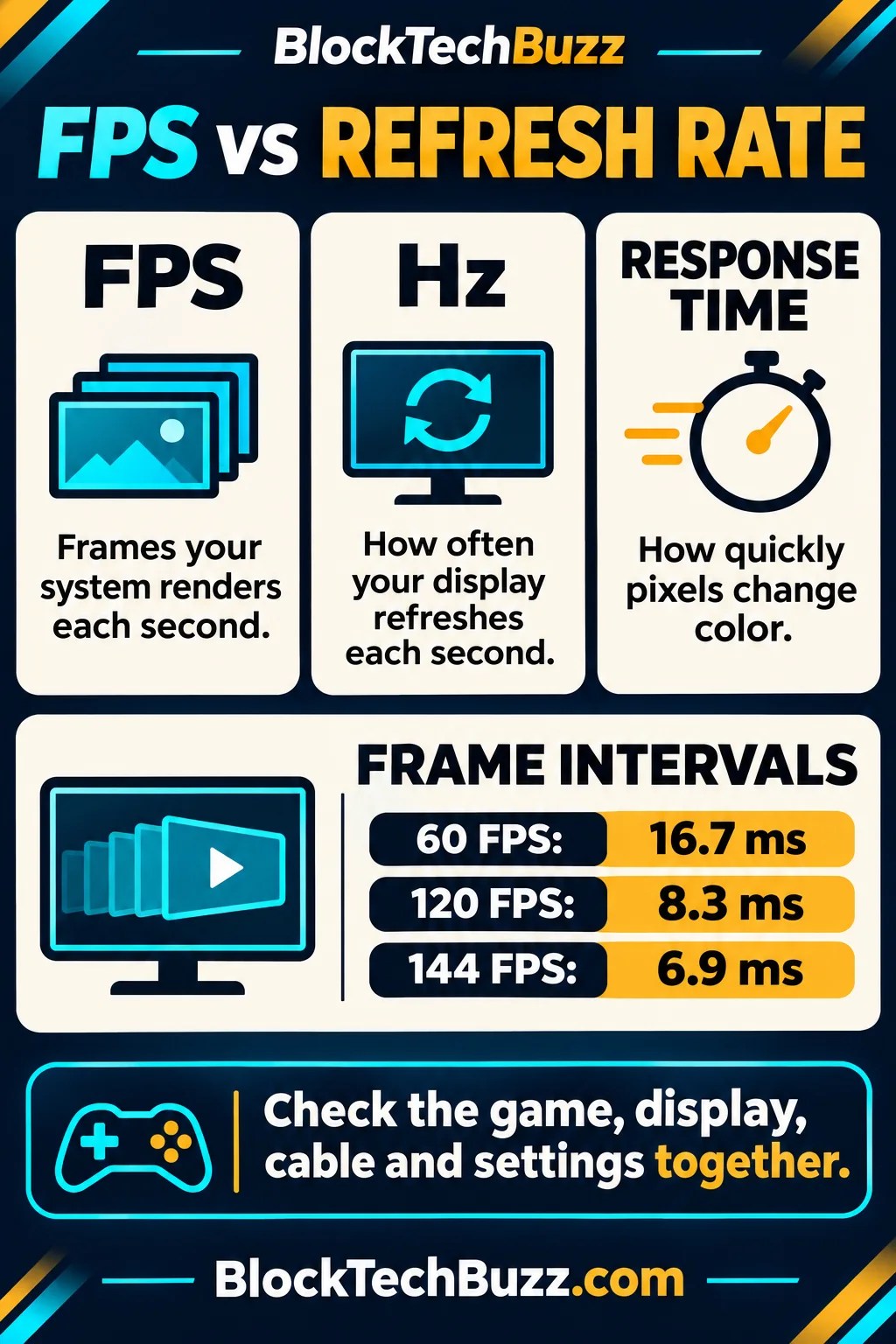
For a steady rate, frame interval is approximately 1,000 divided by FPS in milliseconds. At 60 FPS, a new frame arrives about every 16.7 ms; at 120 FPS, every 8.3 ms; and at 144 FPS, every 6.9 ms. These are arithmetic intervals, not measurements of total input latency.
Why average FPS does not tell the whole story
Two sessions can average 60 FPS and feel very different. One might deliver frames evenly, while the other pauses during shader compilation, asset loading or a busy scene before catching up. The average hides that variation.
Frame-time graphs help you see spikes. Percentile measures such as 1% lows can add useful context, but tools calculate and summarize them differently. Compare results from the same game scene, settings and measurement method. A number from a lightweight menu is not a representative gameplay benchmark.
For your own testing, use a repeatable route or built-in benchmark. Keep resolution, display mode, upscaling, frame generation and graphics presets documented. Change one setting at a time, then look at both visual quality and consistency. Our PC-building guide explains the components that influence performance and compatibility.
What happens when FPS and Hz do not match?
With conventional fixed-refresh behavior, the display updates on its own schedule. If the frame buffer changes while a refresh is being scanned out, parts of different frames can appear on one screen. That visible discontinuity is screen tearing.
If the system cannot supply a fresh frame in time, the display may repeat an older one. Uneven repetition can produce judder. The outcome depends on synchronization, buffering and presentation settings, so there is no single appearance for every mismatch.
V-Sync
Vertical synchronization coordinates presentation with display refresh to reduce tearing. Depending on the implementation and workload, buffering and waiting can affect latency or frame pacing. It is a setting to test with your game and display rather than a universal on-or-off recommendation.
Variable refresh rate
Variable refresh rate, or VRR, lets a compatible display adjust its refresh timing within a supported range. Systems such as Adaptive-Sync, FreeSync, G-SYNC and HDMI VRR have different compatibility and feature requirements. HP’s display glossary distinguishes synchronization from pixel response and explains these common terms.
VRR works within limits. Check the display’s range, selected input, resolution and source device support. Features that help below the minimum refresh range are implementation-dependent. A logo on a product listing does not prove that every port or console mode provides the same behavior.
Response time is a separate specification
A display can refresh quickly while its pixels transition slowly. That can leave trails behind moving objects. Overdrive settings try to speed transitions, but overly aggressive overdrive can introduce bright or dark inverse trails. The best setting may change with refresh rate.
Advertised response-time figures use particular test conditions and may describe different metrics. A one-millisecond gray-to-gray claim and a one-millisecond moving-picture response-time claim are not directly interchangeable. Treat the number as a starting point and look for testing at the refresh rates you actually use.
Motion clarity also depends on persistence, brightness, viewing conditions and the content itself. A higher number on the box is not a complete description of how a display handles a dark scene, fast camera pan or variable frame rate.
Check the entire connection path
- Identify the display’s supported refresh rates at your chosen resolution.
- Confirm which HDMI, DisplayPort or USB-C input supports that mode.
- Check the computer or console output capabilities.
- Use a cable rated for the required connection and bandwidth.
- Temporarily bypass docks, adapters and capture devices when diagnosing a missing mode.
- Select the correct refresh rate in the operating system and the game.
Windows can expose several rates for the same screen. Microsoft’s instructions describe the Advanced display settings used to choose a supported rate. Select the correct display first when several monitors are connected. Some combinations require a different resolution or color mode.
A USB-C socket alone does not establish display bandwidth or video support. Our USB-C troubleshooting guide covers why a connector’s shape does not tell you every capability. Docks can introduce additional limits even when the monitor and graphics hardware are individually compatible.
Tune for the type of game you play
Competitive and fast-motion games
Frequent visual updates and low delay can be valuable, but prioritize stable performance. Lowering expensive visual effects may help when the GPU is the limiting factor. If the CPU cannot prepare frames quickly enough, lowering render resolution alone may accomplish little.
Try a frame cap your system can maintain through demanding scenes. Compare uncapped, capped and synchronized behavior using the same test. The best compromise depends on whether you notice tearing, stutter, latency or noise most strongly. Competitive marketing cannot determine your preference.
Story, exploration and slower-paced games
You may prefer higher image quality, quieter fans or a consistent lower frame rate. A stable mode with good pacing can feel better than one that repeatedly jumps between faster and slower delivery. Our standout-games guide compares play styles rather than assuming every title needs the same performance target.
Portable gaming
Higher rendering rates consume processing resources and often more power. A sensible cap can reduce heat and battery drain on a handheld or laptop. Test while unplugged as well as plugged in because power profiles can change clocks, brightness and performance.
Upscaling and frame generation need clear labels
Upscaling reconstructs a higher-resolution output from a lower-resolution input using the particular technique’s processing. Frame generation creates additional displayed frames between rendered frames in supported implementations. Neither term is a synonym for the native rendering rate.
When comparing results, record whether those features are enabled. Generated frames can improve perceived motion smoothness, but the displayed FPS count does not translate directly into an equivalent rate of new game simulation or input response. Image artifacts and latency behavior depend on the implementation and starting frame rate.
Frequently asked questions
Can I use a 144 Hz monitor for a 60 FPS game?
Yes. The display can show the game, but presentation quality depends on synchronization and frame pacing. VRR may help when supported and enabled. The monitor does not manufacture additional game-state updates merely because its maximum rate is higher.
Is more FPS useful above the refresh rate?
It can affect the freshness of available frames and latency in some pipelines, while also increasing power use and potentially causing tearing. The screen’s refresh limit still applies. Test the actual game instead of assuming either universal benefit or universal waste.
Is a 120 Hz television automatically ready for 120 FPS console play?
No. The game must offer a suitable performance mode, the console must output it, and the TV input and cable must support the selected format. Confirm the settings and current manufacturer documentation.
Choose consistency before chasing a number
Start by confirming the screen’s actual selected refresh rate. Then measure gameplay, identify the limiting component and test synchronization and frame caps. Use frame-time consistency, image quality, responsiveness and power use together. Our gaming-industry guide puts display and performance choices in the wider context of how people play.
Leave a Reply