
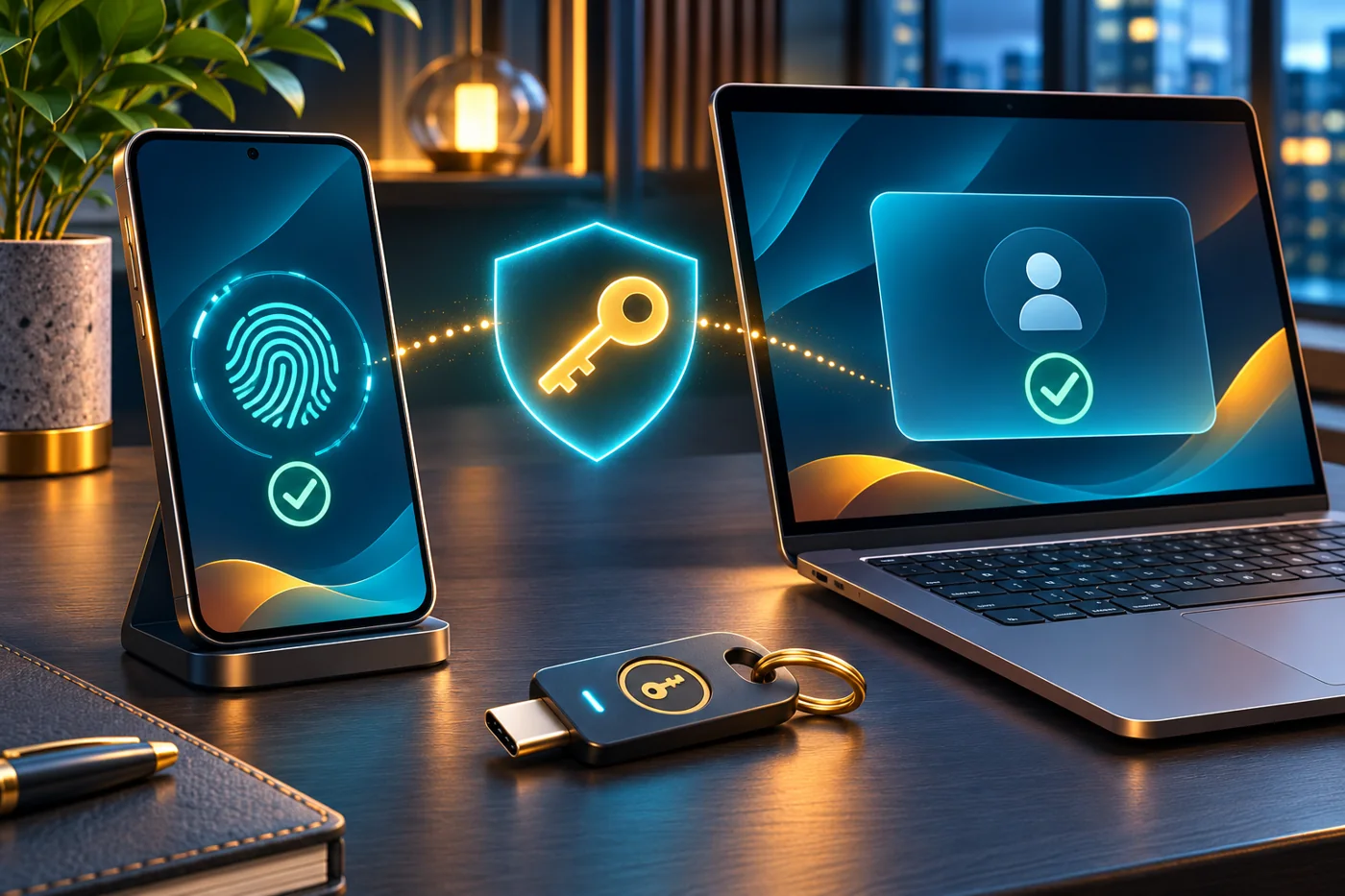
Passkeys replace a typed password with a cryptographic sign-in credential. You usually authorize its use by unlocking a device with your face, fingerprint or PIN. The experience can feel simpler than passwords, but understanding where the passkey is stored is important when you replace a device or need to recover an account.
This guide explains the choices an everyday user actually encounters: a passkey in a password manager, a passkey tied to one device, signing in from another computer, and recovering access after a phone disappears. Start with one account you can safely test rather than changing every important login at once.
Passkeys explained without the jargon
A service registers a public key for your account while the matching private key is protected by your authenticator or credential provider. During sign-in, the device proves it can use that private key. You do not send the website a reusable password to compare with a stored copy.
The FIDO Alliance describes passkeys as credentials based on FIDO standards and distinguishes synced credentials from those bound to a device. A passkey is associated with a particular service. The design helps resist phishing because a look-alike site cannot simply reuse the credential for the genuine site’s identity.
Your fingerprint is not the account password. Biometric verification or a local PIN authorizes the device to use the credential. That distinction is useful when discussing privacy: the website needs proof of authentication, not a copy of the fingerprint you used to unlock your phone.
Synced versus device-bound passkeys
| Type | Where it is available | Recovery consideration |
|---|---|---|
| Synced passkey | Devices supported by the chosen credential provider | Protect the provider account and understand recovery |
| Device-bound passkey | The particular device or security key that holds it | Register a separate backup before losing that device |
| Cross-device sign-in | Uses a nearby device to authenticate on another screen | Follow the service and browser’s supported flow |
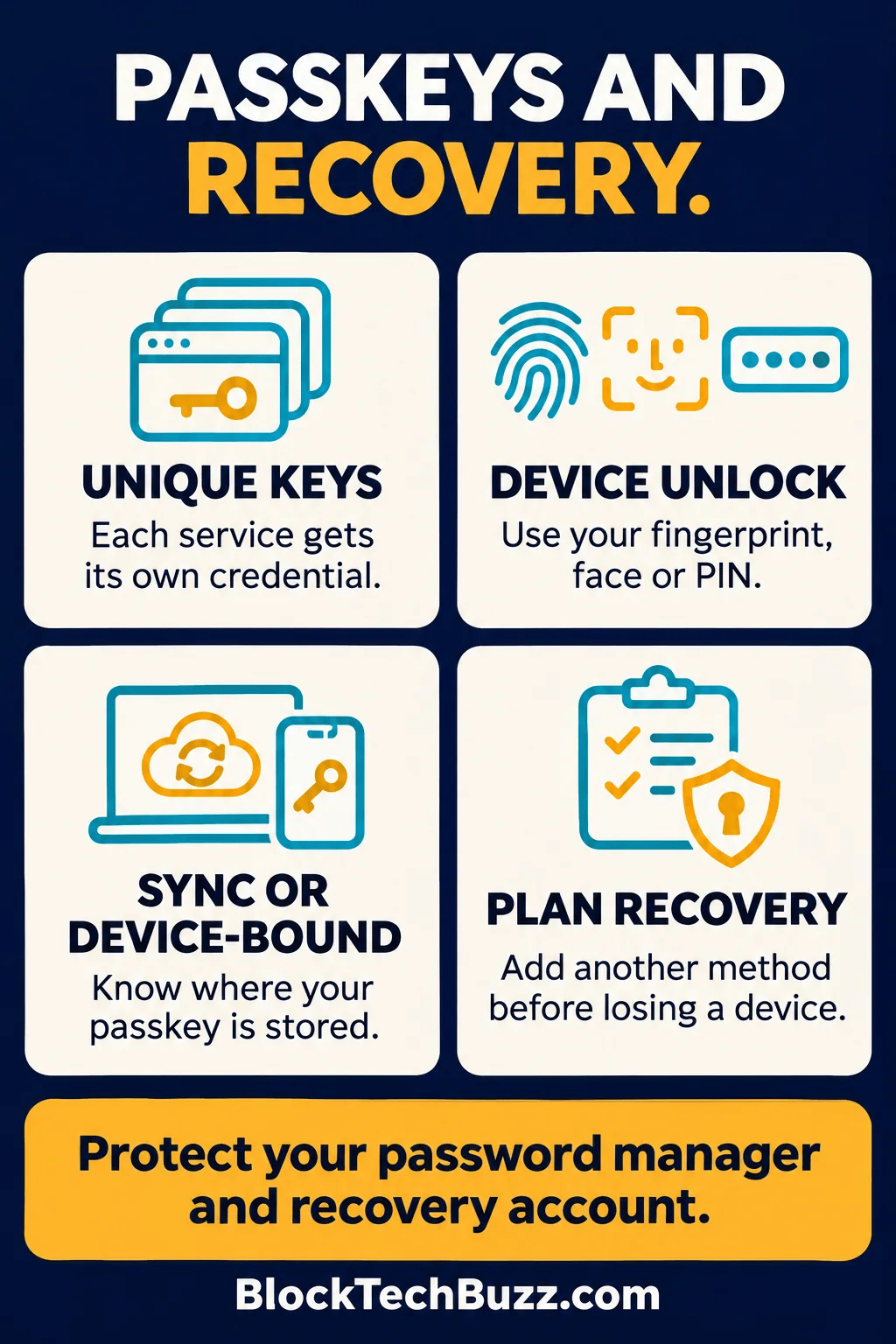
A synced passkey can be made available through a compatible password manager or platform account. A device-bound passkey stays with one authenticator. A physical security key can hold device-bound credentials, while phones and computers can support different storage options depending on their software and policies.
Neither label means every browser, app and platform will behave identically. Check which provider the creation prompt selects. If you have both a browser password manager and a separate manager installed, saving to the wrong one can make the passkey seem to vanish on another device.
Why passkeys help with phishing
Traditional passwords can be copied into a fake sign-in form and replayed by an attacker. A passkey’s service binding changes that process. The authenticator checks the relevant service identity rather than treating every text box as an acceptable place to disclose a shared secret.
That protection does not make every surrounding action safe. A fraudulent support agent can still persuade someone to approve account changes, disclose recovery codes, install remote-control software or transfer money. A stolen unlocked session can also bypass the need to sign in again. Good account security still includes device locks, software updates and careful recovery settings.
Our home cybersecurity guide provides the broader household checklist. Passkeys improve one important part of security; they work best alongside those basic habits.
Set up your first passkey carefully
1. Check the existing recovery options
Open the service from a saved bookmark or its official app. Review your recovery email, phone number, backup codes and registered devices. Remove obsolete details only after confirming that another working option exists. An old email address is an easy recovery problem to overlook.
2. Choose where to save it
Read the system prompt and identify the credential provider. Ask whether you need the passkey on several devices, whether your employer restricts synchronization, and whether you share the device with anyone. Do not assume the service has saved a backup simply because creation succeeded.
If you use Apple devices, Apple’s passkey security documentation explains the role of iCloud Keychain and protected synchronization and recovery. Other providers have their own account requirements, device support and recovery procedures. Follow the documentation for the provider you actually selected.
3. Test a real sign-in
Keep your current signed-in session open. In another supported browser session, sign in using the new passkey and confirm you reach the correct account. If the service still offers a password, do not remove it before testing both the passkey and recovery path. Record which provider holds the credential, without recording private key material.
4. Add an independent recovery route
Where supported, register another authenticator or security key and store recovery codes securely. A second passkey in the same provider can be convenient, but it may share the same provider-account dependency. Think about what remains available if you lose your phone and cannot immediately sign in to that provider.
What happens when you change phones?
For a synced credential, the new phone must support the provider and you must regain access to the account that synchronizes it. For a device-bound credential, having the same phone number or restoring ordinary app files may not reproduce the key. Use the old device to register a new credential while you still have it.
Before trading in or wiping a phone, test the new device on your most important services: primary email, password manager, banking, cloud storage and any account that controls other recovery options. A successful phone setup screen is not the same as proving those services work.
Only after those checks should you remove the old authenticator from each service and complete the manufacturer’s reset process. For household planning, keep a brief inventory of critical services and their recovery methods. Do not include actual recovery codes in a shared public document.
Signing in from a different computer
Supported systems can offer a QR-code flow that lets a nearby phone authenticate a login on another device. FIDO’s cross-device guidance explains that proximity checks use Bluetooth in the supported protocol. A QR code in an official sign-in flow should still be treated differently from a random code sent by someone claiming to be support.
On a borrowed computer, avoid saving new credentials into the other person’s browser or account. Sign out when finished and review active sessions if the service provides them. Private browsing reduces some local traces but does not turn an untrusted machine into a secure one.
Troubleshooting a missing passkey
- Confirm you are signing in to the correct service and account.
- Check which credential provider saved the passkey.
- Update the operating system, browser and password-manager extension.
- Check whether the credential is synced or tied to another device.
- Use an already registered recovery method rather than repeatedly recreating accounts.
- Visit the service’s official support page if the available sign-in options differ from its instructions.
Microsoft’s passkey troubleshooting guidance notes that older operating systems and browsers may lack full support. A failed prompt does not automatically mean your account was hacked or the credential was deleted.
Work accounts and shared devices
Organizations can impose rules that differ from personal accounts. They may require device-bound credentials, managed devices or approved providers. Microsoft documents distinct deployment considerations for synced passkeys in Entra ID. Follow the organization’s policy rather than exporting or synchronizing a work credential into a personal tool without approval.
On a family computer, separate operating-system profiles help keep credentials and sessions apart. A shared PIN or unlocked profile can undermine the account separation you expected. Discuss who can unlock a device before making that device the recovery hub for several people.
Frequently asked questions
Are passkeys the same as two-factor authentication?
They are related but not interchangeable labels. A passkey can combine possession of an authenticator with local user verification. The service decides its overall sign-in and recovery policy, including any additional checks.
Can I lose access if my phone breaks?
Yes, if that phone holds your only usable credential and you have no working recovery method. Synced credentials can improve availability, but you must still be able to recover the provider account. Prepare before the device fails.
Should I delete every password now?
No universal rule fits every service. Test passkey login, document recovery, and follow the service’s instructions before removing an existing method. The quality of the recovery process matters as much as the normal login.
Build a recovery plan you can use
Choose a credential provider deliberately, test sign-in on your devices and maintain a separate recovery route where supported. A few minutes of preparation can prevent a phone replacement from becoming an account lockout. Our digital organization guide can help you turn account maintenance into a manageable routine, while the virtual-events guide covers safer access to online gatherings.
Leave a Reply