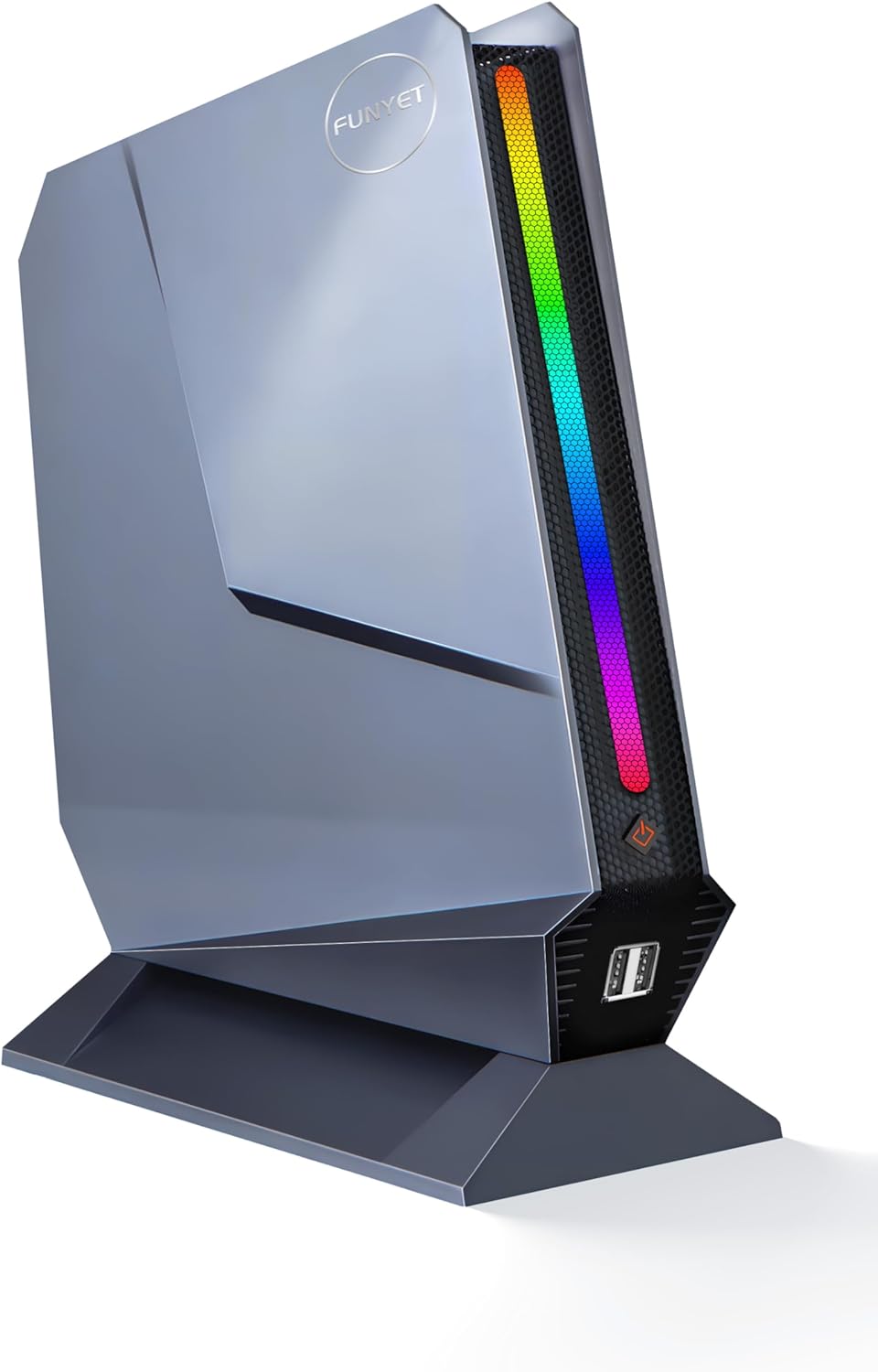
The FUNYET Mini Gaming PC covered by this page was originally advertised with an Intel Core i9-12900H, NVIDIA GeForce RTX 3050 8GB graphics, 32GB of memory, a 1TB SSD, Wi-Fi 6, Ethernet, HDMI, RGB lighting, and Windows 11 Pro. That sounds specific, but current FUNYET materials show why shoppers should verify the exact machine rather than rely on a reused product title.
FUNYET’s current product page is titled “StarShip i9-12900H,” while its own feature list describes an i9-12900HK and RTX 3060. The earlier retail configuration described in this article used an i9-12900H and RTX 3050 8GB. These may be different revisions, but the conflicting labels make model numbers, component IDs, ports, and warranty terms more important than the family name. This is therefore a specification and buying guide—not a claim of hands-on benchmark testing.

FUNYET Mini Gaming PC specifications to verify
| Component | Original listing described | What to confirm before buying |
|---|---|---|
| Processor | Intel Core i9-12900H, 14 cores and 20 threads | Exact H or HK processor name in BIOS and Windows |
| Graphics | GeForce RTX 3050 with 8GB dedicated memory | Desktop or mobile GPU, memory size, power limit, video outputs, and driver support |
| Memory | 32GB | DDR4 or DDR5, module count, speed, available slots, and maximum supported capacity |
| Storage | 1TB SSD | NVMe or SATA, drive model, interface speed, additional slot, and access procedure |
| Networking | Ethernet and dual-band Wi-Fi 6 | Ethernet speed, Wi-Fi chipset and standard, Bluetooth version, and replaceable antenna/module |
| Display output | HDMI | Number and version of HDMI, DisplayPort or USB-C video connections and supported resolution |
| Operating system | Windows 11 Pro | Activation status, edition, recovery method, and source of driver packages |
Do not treat the table as a guarantee for every FUNYET mini PC bearing a similar name. Marketplace sellers often combine multiple capacities or processor/GPU options on one page. Save the exact SKU, selected configuration, invoice, and screenshots of the specification panel before checkout.
What the Intel Core i9-12900H can—and cannot—tell you
Intel identifies the i9-12900H as a 12th-generation mobile processor with six performance cores, eight efficient cores, 20 threads, 24MB of cache, and a maximum single-core turbo frequency of 5.0GHz. Its processor base power is 45 watts, while Intel lists a maximum turbo power of 115 watts.
Those figures describe the processor, not the sustained performance of this computer. A compact system’s cooling, firmware power limits, fan profile, ambient temperature, memory layout, and workload determine how long high clock speeds can be maintained. “Up to 5GHz” does not mean every core runs at 5GHz continuously.
The H and HK suffixes also should not be casually interchanged. They identify different processor models. Windows Task Manager, Device Manager, a reputable hardware-information utility, or the system firmware can confirm which CPU was actually delivered. If the box, invoice, firmware, and seller page disagree, resolve the discrepancy during the return period.
Why the RTX 3050 “8GB” claim needs context
“RTX 3050” is not enough information to predict gaming performance. NVIDIA’s official RTX 30-series laptop specifications list RTX 3050 Laptop GPU variants with 4GB or 6GB of GDDR6 memory. Desktop RTX 3050 cards have existed in other memory configurations. An 8GB claim in a mini PC listing may therefore refer to a desktop-class board or a seller-specific configuration, but it should be verified rather than assumed.
Ask for the GPU device name, memory size, power limit, and cooling design. A screenshot of Windows showing “RTX 3050” does not establish the board’s power target or sustained performance. Compact computers can use custom boards, mobile parts, or desktop components with reduced limits. GPU power and temperature data under a controlled workload are more useful than the family name alone.
Set realistic gaming expectations
An RTX 3050-class system can run many esports, independent, and older games well at sensible settings. Newer, graphically demanding games may require lower detail, reduced resolution, upscaling, or ray tracing disabled. Frame rate varies by game version, driver, scene, cooling, memory mode, and power limit. The original article’s promise of pixel-perfect AAA gaming was not a measurable result.
Start with the display resolution and the specific games you intend to play. Our comparison of seven standout video games illustrates how platform and workload requirements differ. Check each publisher’s current minimum and recommended specifications rather than relying on a generic “gaming PC” label.
Cooling is the defining mini-PC constraint
A small enclosure reduces desk space but concentrates heat. CPU and GPU boost behavior can change as temperatures rise, and a loud fan profile may be necessary to sustain performance. Manufacturer claims that dual fans ensure peak performance or extend hardware life are not substitutes for independent temperature and noise measurements.
- Keep every intake and exhaust clear; do not push the chassis against a wall or hide it in a closed cabinet.
- Place the system on a rigid surface rather than carpet or fabric.
- Record idle and load temperatures during the return period using a reputable monitoring tool.
- Watch for sudden clock drops, crashes, visual artifacts, excessive fan cycling, or a hot power adapter.
- Follow the manual before opening the chassis. Accessing filters, memory, or storage may affect clips, cables, thermal pads, or warranty coverage.
Dust buildup matters more in a compact cooling path. Power down, unplug the adapter, and use the manufacturer’s cleaning procedure. Do not let fans free-spin at extreme speed from compressed air, and do not introduce a vacuum nozzle or liquid into the enclosure.
Memory and storage checks
Thirty-two gigabytes of system memory is generous for gaming, general creation, and multitasking, but configuration matters. Two matched modules can provide dual-channel bandwidth; one 32GB module may leave a slot free but reduce bandwidth in some workloads. Confirm module count and speed rather than reading only the total capacity.
A “1TB SSD” label does not identify the drive’s controller, NAND type, endurance, or interface. Check the installed model, health data, and whether the storage slot runs at its advertised PCIe generation. Before replacing a drive, create recovery media, back up personal files, and identify the required screw, thermal pad, and supported drive dimensions.
If serviceability is important, compare the mini PC with a conventional desktop using our step-by-step PC-building guide. A larger case generally offers more standardized power, cooling, and graphics upgrades; a mini PC prioritizes size and convenience.
Ports, networking, and multi-monitor use
Count the physical ports in photos of the exact unit and compare them with the manual. Similar configurations may differ in HDMI versions, DisplayPort, USB-C video support, USB speeds, Ethernet controllers, Wi-Fi generations, and Bluetooth. A USB-C connector does not automatically support charging, Thunderbolt, USB4, or video output.
- Displays: verify which ports connect to the discrete GPU, the maximum resolution and refresh rate per port, and whether simultaneous outputs share limits.
- Ethernet: confirm whether the port is 1Gbps or 2.5Gbps and install the correct vendor driver.
- Wi-Fi: check the actual wireless module and antenna connection; “dual-band” does not by itself prove Wi-Fi 6.
- USB: identify speed and power capabilities. Front-panel convenience does not guarantee high-speed storage performance.
- Audio: determine whether the system includes separate headphone/microphone connections or a combined headset jack.
Windows, drivers, and security
On first boot, confirm that Windows is activated with a valid digital license and that the installed edition matches the invoice. Run Windows Update, then obtain graphics, chipset, networking, and firmware updates from FUNYET or the relevant component vendor. Avoid driver-download aggregators and unknown “optimizer” utilities.
Review startup applications and installed software before signing into sensitive accounts. Enable device encryption or BitLocker where supported, use a password manager and multifactor authentication, and create a recovery drive. Our home cybersecurity guide covers updates, backups, account protection, and recovery planning.
Power adapter, warranty, and support
The external power supply is part of the computer’s thermal and electrical system. Verify that its output voltage, current, polarity, connector, and regional mains input match the label and manual. Do not replace it merely because another adapter’s plug fits. Stop using an adapter that is cracked, unusually noisy, intermittently disconnecting, or excessively hot, and ask the seller for the approved replacement specification.
FUNYET’s current website advertises support and warranty coverage, but terms can differ by seller, country, date, and model. Confirm who—not just which brand—accepts a return or warranty claim, who pays shipping, whether storage or memory upgrades affect coverage, and how long replacement parts remain available. Save the invoice and seller correspondence locally. A warranty claim is much easier when the delivered serial number and exact configuration were documented before use.
A return-window test plan
- Document the delivery. Photograph labels, serial numbers, seals, adapter ratings, and package contents.
- Verify components. Check the CPU, GPU, video memory, RAM modules, SSD model, Wi-Fi adapter, and Windows edition against the invoice.
- Install official updates. Apply operating-system, graphics, chipset, and firmware updates before judging stability.
- Test every port. Use known-good displays, storage, audio, Ethernet, Wi-Fi, and Bluetooth devices.
- Measure temperatures and noise. Record idle and repeatable load behavior in the intended room and placement.
- Test real workloads. Use the games and applications you actually own. Do not rely only on a short synthetic benchmark.
- Check sleep and recovery. Test restart, sleep, wake, network reconnection, and recovery media.
- Resolve mismatches promptly. Ask the seller in writing whether a discrepancy is an error, substitution, or different revision while return rights remain available.
Who should consider this type of mini PC?
A verified configuration can suit a compact gaming desk, living-room setup, dorm, or portable workstation where size matters more than future graphics upgrades. It may also handle productivity, media, and moderate creative work. Buyers who prioritize standardized parts, quiet sustained loads, easy repairs, or major GPU upgrades should compare a small-form-factor desktop instead.
Mini PCs also should not be confused with consoles. The history and tradeoffs of dedicated gaming hardware are covered in our video game history guide.
FUNYET Mini Gaming PC FAQs
Is this a review based on hands-on testing?
No. This article evaluates documented specifications and buying considerations. It does not claim independent frame-rate, temperature, noise, or power measurements.
Does every FUNYET StarShip use the same CPU and GPU?
Do not assume so. The original listing and current manufacturer page describe different processor and graphics combinations, and the current page’s title and body also differ. Verify the exact SKU and delivered hardware.
Can the RTX 3050 run modern games?
An RTX 3050-class GPU can run many games, but settings and frame rates depend on the exact GPU, power limit, cooling, resolution, and game. Check game-specific requirements and test your own workload.
Can the RAM and SSD be upgraded?
Some FUNYET mini PCs advertise SODIMM and M.2 expansion, but layouts differ. Confirm the exact manual, supported capacities, slot count, and warranty terms before opening the chassis.
Is Windows 11 Pro automatically legitimate because it is installed?
No. Confirm activation in Windows settings and ensure the edition matches the invoice. Keep proof of purchase and create recovery media after setup.
Verdict
The FUNYET Mini Gaming PC combines appealing components with a compact footprint, but the available configuration descriptions are inconsistent enough that a blanket recommendation would be irresponsible. Treat CPU, GPU, memory, storage, ports, networking, and warranty as claims to verify for the exact unit. If the delivered hardware matches the invoice, remains stable under your workloads, and passes return-window testing, the compact design may be useful. If documentation or component identity remains unclear, use the return policy rather than accepting assumptions.
Leave a Reply